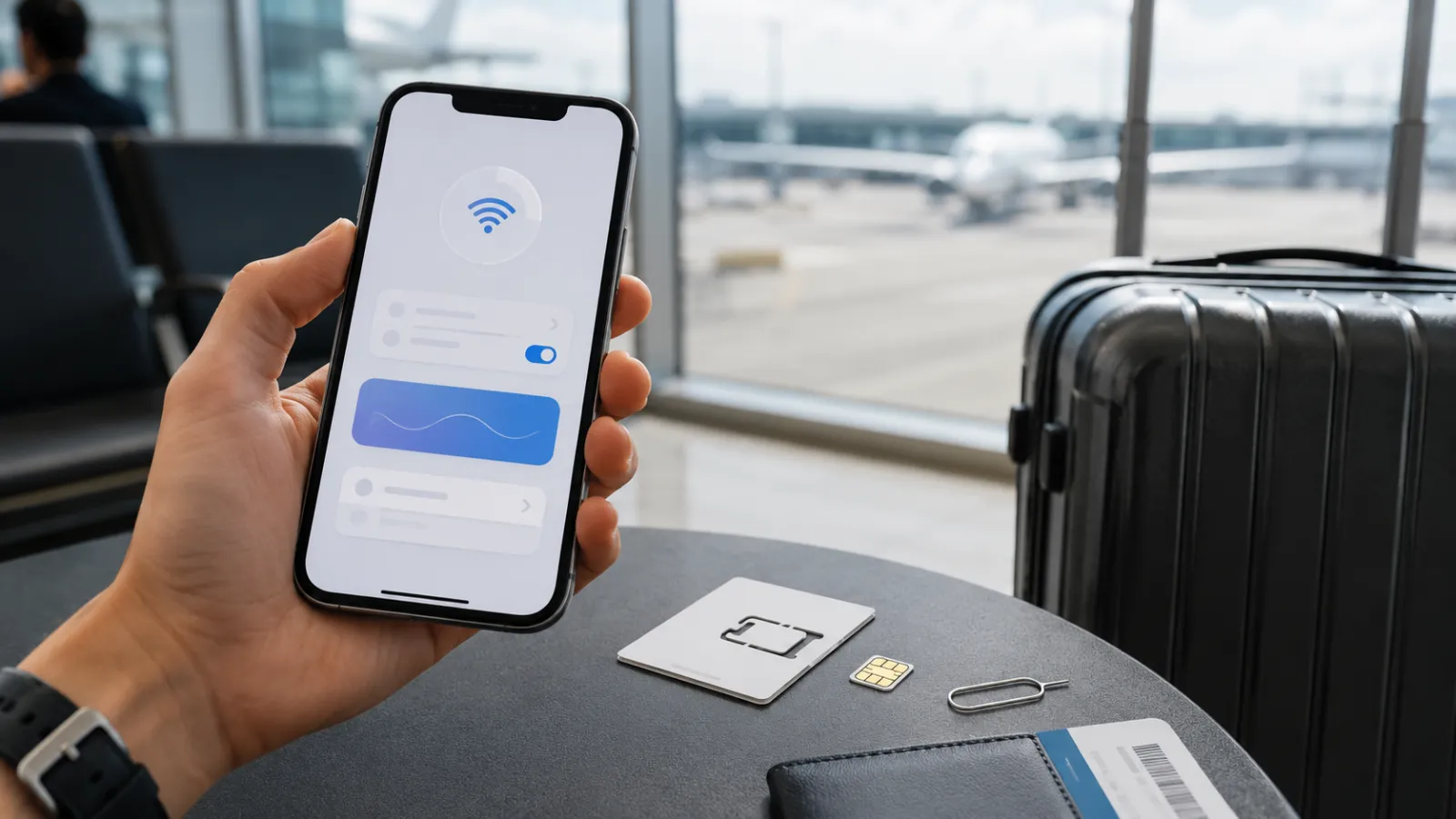
Tag: travel eSIM

  • eSIM vs Airport SIM: Which option is actually cheaper?

    eSIM vs Airport SIM: Which option is actually cheaper?

    The first mobile-data decision of a trip often happens at the worst possible moment.

    You have just landed, the airport Wi-Fi is unreliable, your accommodation is waiting for a message and you need directions. A kiosk offers a physical tourist SIM, while your phone displays several travel eSIM plans that can be activated immediately.

    The eSIM looks easier.

    The airport SIM may appear to offer more data.

    But neither option is automatically cheaper.

    The real comparison depends on how much data you need, whether you require a local telephone number, how many countries you will visit and whether the advertised package includes activation, taxes, calls and hotspot use.

    What we are actually comparing

    An eSIM is not a separate type of mobile network. It is a digital method of loading a mobile operator profile onto a compatible device instead of inserting a removable plastic card.

    GSMA describes eSIM as a standardized system that allows operator profiles to be downloaded remotely and lets compatible devices store multiple profiles.

    The term travel eSIM can refer to two different products:

    • an eSIM sold directly by a local mobile network
    • an international travel eSIM using partner networks in the destination.

    An airport SIM can also be sold by:

    • the official local operator
    • an authorized retailer
    • an independent airport reseller

    This creates an important distinction:

    The real comparison is not simply digital SIM versus plastic SIM. It is travel reseller versus local operator, data-only plan versus full mobile service, and convenience versus complete value.

    A local operator can sell both a physical SIM and an eSIM. Dubai operator du, for example, currently promotes a tourist eSIM that can be activated digitally after passport verification, including a free introductory 10GB allowance valid for 24 hours.

    The Fintayo comparison method

    To compare the two options fairly, do not look only at the largest data number.

    Use the same travel profile for both offers:

    Trip length: 7–14 days
    Required data: approximately 10GB
    Devices: one smartphone
    Countries visited: one or several
    Calls required: yes or no
    Hotspot required: yes or no

    Then compare:

    Cost factorTravel eSIMAirport or local SIM
    Package priceUsually shown before travelConfirmed at kiosk or operator store
    SIM or activation feeOften includedMay be separate
    Data allowanceFrequently data-onlyOften larger local package
    Local numberNot always includedCommonly included
    Calls and SMSFrequently excludedOften included
    Passport registrationUsually digital or not required by resellerOften completed at point of sale
    Installation timeBefore departure or on arrivalQueue, registration and SIM change
    Multi-country coverageCommonUsually one country
    Hotspot useDepends on providerDepends on tariff
    Top-upApp or websiteOperator app, store or voucher

    The cheapest product is the one that meets the actual requirement without making you buy missing services later.

    Current market examples

    Prices vary constantly, so these examples are a snapshot rather than a universal ranking.

    A multi-country European eSIM

    Orange Travel currently lists a Europe data-only eSIM with 10GB valid for 14 days at $22.99. It also lists a 20GB package with calls and SMS valid for 14 days at $29.99, covering more than 40 European destinations.

    For a traveler visiting several European countries, one regional eSIM can remove the need to purchase a new local package at each border.

    A local tourist SIM in Türkiye

    Turkcell’s official Tourist Welcome Pack currently provides 20GB of data and 200 local minutes, valid for 28 days, at a recommended price of 1,800 Turkish lira. The operator states that the package is available to new prepaid tourist customers through its stores.

    That package provides more than data: it also includes a local mobile line and domestic calling minutes.

    However, a traveler staying for four days and using only maps and messaging may not need a 28-day package. A lower-priced data-only eSIM could still be better value even if it contains fewer gigabytes.

    A local tourist eSIM in the UAE

    The du example shows why “eSIM versus local SIM” is sometimes the wrong question. The local operator itself offers a tourist eSIM, including a free 10GB introductory allowance valid for 24 hours, followed by optional tourist bundles.

    In that situation, the traveler can receive the convenience of an eSIM while still purchasing directly from a destination operator.

    When the travel eSIM is usually cheaper

    A travel eSIM tends to provide better overall value when:

    • the trip is short
    • you need only mobile data
    • you will visit several countries
    • you do not need a local telephone number
    • airport time is limited
    • the physical tourist package contains far more data than you will use
    • the local SIM has a separate registration or activation cost
    • you want to keep your home SIM installed

    Apple and Google both present prepaid travel eSIMs as an option for international travel. Apple notes that an unlocked compatible iPhone can use an eSIM from a local carrier or worldwide provider, while Google recommends prepaid travel eSIMs as a way to avoid conventional roaming charges on compatible Pixel devices.

    Consider a five-day city break.

    The traveler expects to use:

    • navigation
    • restaurant searches
    • messaging
    • occasional social-media uploads
    • airline and transport applications

    A smaller eSIM package may be more rational than paying for 20GB, local calls and 28 days of validity that will never be used.

    The price per gigabyte could be higher, but the total trip cost could still be lower.

    When an airport or local SIM may be the better deal

    A local SIM can offer better value when:

    • the stay is long
    • heavy data use is expected
    • the traveler needs a local telephone number
    • local calls are important
    • hotspot use is required for a laptop or family
    • the local operator offers a generous tourist bundle
    • the device does not support eSIM
    • the phone is carrier-locked
    • in-person technical assistance is valuable

    A telephone number can matter more than travelers expect.

    Accommodation hosts, restaurants, delivery services, hospitals and local transport operators may prefer an ordinary local call. Some online services also require a national number for registration or verification.

    A data-only travel eSIM usually keeps WhatsApp and similar services working with the existing account, but it does not necessarily provide a number that can receive normal local calls or SMS.

    For a month-long stay, the physical local SIM may therefore offer more complete value even when the initial purchase takes longer.

    Airport SIM does not always mean the best local price

    A SIM sold inside an airport may be convenient, but the airport counter is not automatically the cheapest place to buy the operator’s service.

    The product may be:

    • an official tourist package at the normal price
    • a package with an additional activation charge
    • a retailer bundle containing accessories or unnecessary services
    • a different offer from the one advertised on the operator’s website

    Before paying, ask for a complete breakdown:

    SIM price
    Activation or registration fee
    Data allowance
    Validity
    Calls and SMS
    Taxes
    Top-up conditions
    Hotspot restrictions

    Take a photograph of the package description and receipt.

    Do not assume that the largest sign above the kiosk represents the final amount.

    The hidden cost of an eSIM

    Travel eSIMs also have limitations that can make a cheap package poor value.

    The phone must be compatible

    Not every device supports eSIM. Compatibility can also vary by model, country of sale and carrier configuration.

    Apple currently states that international travel eSIM use generally requires an iPhone XS, XS Max, XR or later, a supporting provider and an unlocked device.

    Google states that eSIM availability on Pixel phones depends on the model and mobile carrier.

    Check this before purchasing a non-refundable package.

    The phone may be carrier-locked

    A compatible phone can still reject another operator’s eSIM when it is locked to the home carrier.

    On iPhone, the status can be checked under:

    Settings → General → About → Carrier Lock

    Apple states that an unlocked device should display “No SIM Restrictions.”

    Some plans are data-only

    A cheap eSIM may not include:

    • a telephone number
    • voice calls
    • incoming SMS
    • emergency calling through that line
    • hotspot access
    • unrestricted high-speed data

    “Unlimited” also needs careful reading. A plan can be subject to fair-use rules, speed management or daily hotspot restrictions.

    Installation requires preparation

    Most eSIMs should be installed while a reliable internet connection is available. Apple notes that Wi-Fi or a hotspot is generally required during activation, although limited exceptions exist for certain devices and regions.

    Do not wait until you are standing outside an airport without working internet.

    The hidden cost of a physical airport SIM

    A physical SIM creates costs that do not always appear in the advertised package price:

    • time spent finding the correct kiosk
    • queueing and passport registration
    • removing and storing the home SIM
    • losing access to the normal number on a single-SIM phone
    • sales pressure toward a larger package
    • language misunderstandings
    • difficulty recovering the SIM if it is lost
    • replacing it when traveling to another country

    The plastic card itself is rarely the important cost.

    The real cost is the package, registration process and loss of flexibility.

    Multi-country travel changes the answer

    For one destination, a local package can compete strongly on price and data volume.

    For a multi-country trip, the calculation changes.

    A regional eSIM can connect through partner networks across multiple destinations without requiring a new purchase at each border. Orange Travel’s current European packages, for example, cover more than 40 countries under a single plan.

    A traveler moving from Spain to France and then Italy can keep the same eSIM profile active.

    By contrast, a domestic physical SIM may or may not include affordable roaming outside its home country. Coverage, fair-use conditions and included destinations must be checked individually.

    The cheapest single-country SIM is not necessarily the cheapest solution for the entire itinerary.

    Keeping the home number active

    One of the strongest advantages of an eSIM setup is Dual SIM use.

    A compatible phone can keep:

    • the home line active for calls and verification messages;
    • the travel eSIM selected for mobile data.

    Apple supports using Dual SIM while traveling and lets users assign one line for cellular data and another for calls or messages. It also warns that using two different carriers requires an unlocked device unless both plans belong to the same carrier.

    The safe configuration is:

    SettingHome SIMTravel eSIM
    Line activeYesYes
    Mobile dataOffOn
    Data roamingOff unless coveredAs instructed by provider
    Default callsHome SIMOptional
    Automatic data switchingOffOff

    Keeping the home line active can still create charges for calls or SMS depending on the carrier. The roaming tariff must therefore be checked separately.

    The Fintayo three-part test

    Before buying either option, answer three questions.

    1. What will I actually use?

    Estimate:

    • trip duration
    • expected data
    • number of countries
    • voice-call requirements
    • hotspot usage

    Do not buy 50GB because it looks like better value when you normally use only a few gigabytes per week.

    2. What is the complete price?

    For an airport SIM:

    Package + SIM + activation + taxes

    For an eSIM:

    Package + required calls + possible top-up

    The offers must provide comparable services before their prices can be compared honestly.

    3. What happens when something goes wrong?

    Ask:

    • Is support available?
    • Can the plan be reinstalled?
    • Is the eSIM refundable before activation?
    • Can the airport kiosk replace a faulty SIM?
    • Can the account be topped up online?
    • Does the plan display real-time data usage?

    Saving five euros is not worthwhile if the connection fails when navigation or a boarding pass is needed.

    Our verdict

    For a short trip where the traveler needs only data, a travel eSIM is often the cheaper and more efficient option.

    It can be bought before departure, avoids airport queues, leaves the home SIM in place and can cover several countries under one package.

    For a longer stay, heavy data consumption or a genuine need for a local number and local calls, an official local tourist SIM can provide better total value.

    The winner is not determined by whether the SIM is physical or digital.

    It is determined by four factors:

    Total price, usable data, geographic coverage and the services actually needed.

    The airport SIM wins when the traveler needs a complete local mobile service.

    The travel eSIM wins when the traveler needs fast, flexible internet without paying for benefits that will never be used.

    Important: Prices, coverage, fair-use rules and package availability can change without notice. Verify the current offer, device compatibility and refund terms before purchasing or activating a SIM.
  • Turn off these phone settings before traveling abroad

    Turn off these phone settings before traveling abroad

    Your phone does not need to be in your hand to use mobile data.

    While it sits in your pocket, it can refresh apps, upload photographs, download updates, retrieve emails and switch from weak hotel Wi-Fi to a cellular network.

    At home, that background activity may be harmless. Abroad, particularly without an inclusive roaming package, the same activity can become expensive.

    The obvious solution appears to be switching off data roaming. But modern travel setups are more complicated. A traveler using a local SIM or travel eSIM may need roaming enabled for the new line while keeping it disabled for the home line.

    The safest strategy is not to switch off everything.

    It is to decide which SIM is allowed to use data, reduce background consumption and remove the settings that can silently override your choice.

    First, find out what your mobile plan actually covers

    Before changing the phone, check your carrier’s roaming tariff.

    Confirm:

    • which countries are included
    • how much high-speed data is available
    • whether calls and SMS are covered
    • whether a daily roaming pass activates automatically
    • what happens after the allowance is exhausted
    • whether tethering or hotspot use is permitted
    • whether incoming calls are charged
    • whether cruise ships and aircraft networks are excluded

    Do not assume that traveling within Europe automatically means free roaming.

    The European Union’s “Roam Like at Home” framework lets customers with qualifying EU and European Economic Area mobile subscriptions use domestic allowances while temporarily traveling in participating countries, subject to fair-use conditions. Since January 1, 2026, the arrangement has also extended to Ukraine and Moldova. That does not mean every SIM issued elsewhere, including by a non-EU operator, receives the same treatment.

    Your phone settings cannot protect you from a tariff you have not understood.

    1. Turn off data roaming on the SIM you do not intend to use

    Data roaming allows a SIM to connect to cellular data when it is outside its home carrier’s network.

    On an iPhone, Apple places the setting under:

    Settings → Cellular/Mobile Data → select the SIM → Data Roaming

    On a Pixel and many other Android phones, the route is generally:

    Settings → Network & internet → SIMs → select the SIM → Roaming

    Menu names vary between Android manufacturers and software versions. Apple advises travelers without an applicable roaming arrangement to turn off Data Roaming to help prevent roaming charges.

    For a traveler using only the home SIM, the decision is relatively simple:

    • turn roaming on when the carrier confirms that the destination and usage are covered
    • leave it off when there is no suitable roaming package

    With dual SIM or eSIM, each line must be checked separately.

    2. Select the correct SIM for mobile data

    Suppose your phone contains:

    • your normal home SIM for calls and verification messages, and
    • a travel eSIM for mobile internet

    Installing the travel eSIM is not enough. You must also select it as the line used for cellular data.

    On iPhone:

    Settings → Cellular/Mobile Data → Cellular Data → select travel eSIM

    On Android:

    Settings → Network & internet → SIMs → Mobile data → select travel eSIM

    The precise Android path varies by manufacturer.

    Then review the roaming setting for each line:

    SIMMobile dataData roaming
    Home SIMOffOff unless covered
    Travel eSIMOnAccording to eSIM provider’s instructions

    The final column is important. Many international eSIMs connect through partner networks and require data roaming to be enabled on the travel line. Turning roaming off globally can therefore prevent the eSIM from working.

    The correct rule is not “roaming must always be off.”

    It is:

    Roaming should be enabled only on the line and plan that you have deliberately chosen.

    3. Turn off automatic cellular-data switching

    Dual-SIM phones can include a setting that allows the device to switch mobile-data lines when the preferred line has poor service.

    That can be convenient at home. Abroad, it can undermine the entire travel setup.

    On iPhone, review:

    Settings → Cellular/Mobile Data → Cellular Data

    Then disable:

    Allow Cellular Data Switching

    The wording and availability depend on the phone, carrier and SIM configuration.

    On Android, look for settings such as:

    Switch mobile data automatically
    Automatic data switching
    Use data during calls
    Backup calling

    Manufacturer wording varies.

    The risk is simple: your travel eSIM loses signal, and the phone quietly moves data traffic to the home SIM. If that home SIM does not have an appropriate roaming package, the fallback can trigger unwanted charges.

    After setup, open the mobile-data page again and verify that the travel line is visibly selected.

    4. Enable Low Data Mode or Data Saver

    The most useful travel setting may not be a complete cellular shutdown. It may be a system-wide instruction to reduce background use.

    On iPhone:

    Settings → Cellular → select line → Data Mode → Low Data Mode

    Depending on the network type and iPhone configuration, the menu can appear slightly differently.

    Apple states that Low Data Mode restricts background network use. It can pause automatic updates and background tasks while reducing the frequency of some app activity.

    On Pixel and many Android phones:

    Settings → Network & internet → Data Saver

    Google explains that Data Saver reduces mobile-data use by limiting how most apps send or receive background data. Apps currently being used can continue accessing data, while selected apps may be granted unrestricted access.

    This gives you a better balance:

    • maps and messaging can continue working
    • nonessential background activity is reduced
    • you do not need to disable every app individually

    Before departure, review any apps marked as exempt from Data Saver. A photo app, social network or cloud-storage service with unrestricted access can still consume substantial data.

    5. Turn off automatic app updates over mobile data

    An app update can range from a few megabytes to well over a gigabyte. Several updates beginning after you leave hotel Wi-Fi can consume a limited travel plan surprisingly quickly.

    On iPhone, downloaded apps are automatically updated by default. Apple lets users disable automatic app updates through:

    Settings → Apps → App Store → App Updates

    You can also review whether the App Store is permitted to use cellular data.

    On Android, open:

    Google Play Store → profile picture → Settings
    → Network preferences → Auto-update apps

    Select:

    Over Wi-Fi only

    or temporarily choose not to auto-update. Google documents these network preferences within the Play Store’s app-update settings.

    Update essential travel apps before leaving:

    • airline app
    • maps
    • messaging
    • banking and authentication apps
    • travel eSIM app
    • accommodation and transport apps

    Then restrict automatic updates during the journey.

    Do not begin a major operating-system update immediately before boarding. Complete important security updates at home, with stable Wi-Fi, power and enough time to resolve any problem.

    6. Stop photo and video backups from using roaming data

    Modern phone cameras generate large files. A short high-resolution video can consume more data than hours of text messaging.

    Apple’s iCloud Photos can automatically upload photographs and videos so they remain synchronized across devices. iPhone also offers a separate option for some models and carriers to perform device backups over cellular data.

    Before traveling, review:

    Settings → [your name] → iCloud → Photos

    and:

    Settings → [your name] → iCloud → iCloud Backup

    You do not necessarily need to disable iCloud Photos completely. Low Data Mode can reduce background activity, and cellular access can be restricted for selected services. Apple recommends power and Wi-Fi when resolving or completing large iCloud Photos synchronization tasks.

    In Google Photos, open:

    Google Photos → profile picture → Photos settings
    → Backup → Mobile data usage

    Review whether photos or videos may be backed up using mobile data. Google confirms that Photos can automatically save media to the user’s account when backup is enabled and provides mobile-data controls within the backup workflow.

    A practical travel setup is:

    • photographs: back up on trusted Wi-Fi
    • videos: Wi-Fi only
    • roaming backup: off
    • manual emergency backup: available when genuinely needed

    There is a trade-off. Disabling cloud backup reduces data use, but a lost or stolen phone could also mean losing photographs that were never uploaded. Connect to trusted Wi-Fi periodically and allow the backup to complete.

    7. Restrict Background App Refresh

    Apps can retrieve new content even when they are not visibly open.

    On iPhone:

    Settings → General → Background App Refresh

    You can:

    • disable it completely
    • permit it over Wi-Fi only
    • control it app by app

    Apple documents the choice between Wi-Fi-only and Wi-Fi plus cellular background refreshing.

    A measured approach is better than disabling every service. Keep background access for apps that genuinely need timely updates, such as secure messaging or transportation, and restrict:

    • social-media apps
    • news apps
    • shopping platforms
    • games
    • cloud-storage tools
    • apps you will not use during the trip

    Android handles background access through Data Saver and individual app-data controls. The path differs across manufacturers, but it is generally available under:

    Settings → Apps → select app → Mobile data/Data usage

    Look for permissions such as:

    Background data
    Unrestricted data usage
    Allow data while Data Saver is on

    The objective is not to stop the phone from functioning. It is to prevent low-priority apps from consuming the travel allowance without your knowledge.

    8. Turn off Wi-Fi Assist or automatic mobile fallback

    Weak Wi-Fi is not always disconnected Wi-Fi.

    Your phone may remain connected to a hotel, airport or café network while deciding that the signal is too poor. It can then use cellular data to maintain the internet connection.

    On iPhone, this feature is called Wi-Fi Assist and is enabled by default. Apple explains that it can automatically switch to cellular data when the Wi-Fi connection is poor. It can be disabled under:

    Settings → Cellular/Mobile Data → Wi-Fi Assist

    On Android, manufacturers use names such as:

    Switch to mobile data automatically
    Intelligent Wi-Fi
    Adaptive connectivity
    Auto network switch

    Not every similarly named setting performs exactly the same function, so read the description shown on the device.

    This setting matters when you believe you are using free Wi-Fi while the phone is quietly supplementing it with roaming data.

    After connecting to public Wi-Fi, verify the active network icon instead of assuming the connection is carrying all traffic.

    9. Download essential content before departure

    Reducing background use is only half the plan. The other half is preparing the phone to work offline.

    Before leaving, download:

    • offline maps for the destination
    • airline boarding passes
    • hotel confirmation and address
    • train and bus tickets
    • travel-insurance details
    • passport and document copies stored securely
    • translation language packs
    • entertainment for the journey
    • emergency telephone numbers

    Save critical details in a form that does not depend on an email account refreshing correctly.

    A useful offline note should contain:

    Accommodation name and address
    Booking number
    Check-in instructions
    Flight or train details
    Travel insurer contact
    Card issuer emergency number
    Travel eSIM instructions
    Local emergency number

    Do not store unprotected card numbers, PINs or full identity-document details in an ordinary notes app.

    10. Do not turn off the wrong settings

    Some popular travel advice goes too far.

    Do not disable Find My or device-location security

    A lost phone abroad creates a larger problem than moderate data use. Keep device-finding and remote-lock features available.

    Do not assume GPS itself creates roaming charges

    Satellite positioning does not inherently require a mobile-data connection. However, map tiles, traffic information, search results and routing updates can use data. Downloading offline maps addresses the expensive part without disabling location services entirely.

    Do not disable security and authentication tools

    Banking verification, password managers and authenticator apps may be essential while traveling. Test them before departure, particularly if they depend on the home telephone number.

    Do not remove the home SIM without understanding the consequences

    You may need it to receive bank messages or account-verification codes. Keeping it active for SMS while disabling its data access may be more practical than removing it.

    Incoming SMS pricing and availability depend on the carrier and destination, so verify the tariff in advance.

    The Fintayo dual-SIM setup

    For a traveler using a data-only eSIM, a sensible configuration may look like this:

    SettingHome SIMTravel eSIM
    Line enabledYesYes
    Calls and SMSHome lineUsually unavailable/data only
    Mobile dataNoYes
    Data roamingOffAs instructed by provider
    Automatic data switchingOffOff
    Low Data Mode/Data SaverOn

    This arrangement keeps the home number available while directing internet traffic through the travel plan.

    However, phone models, carriers and travel eSIM products differ. Always follow the eSIM provider’s activation instructions, particularly regarding roaming and the access-point name, or APN.

    A five-minute preflight phone audit

    Complete this before leaving home Wi-Fi:

    1. Confirm the roaming tariff or activate the intended package.
    2. Install and test the travel eSIM.
    3. Select the correct mobile-data line.
    4. Turn off data roaming for the home SIM when it is not covered.
    5. Disable automatic cellular-data switching.
    6. Enable Low Data Mode or Data Saver.
    7. Restrict app updates to Wi-Fi.
    8. Restrict photo, video and cloud backups to Wi-Fi.
    9. Disable Wi-Fi Assist or similar cellular fallback.
    10. Download maps, bookings and essential travel documents.
    11. Reset the mobile-data statistics or note the current usage.
    12. Take screenshots of the final SIM configuration.

    Resetting the usage counter before departure gives you a simple way to see how much data the trip has consumed, although the carrier’s own records remain the basis for billing.

    Check the carrier app each day when using a capped or pay-as-you-go roaming package.

    The Fintayo takeaway

    Unexpected roaming bills rarely come from one dramatic action.

    They are often created by ordinary background activity:

    • a cloud photo upload
    • several app updates
    • a weak Wi-Fi connection
    • an automatic switch to the wrong SIM
    • a video that begins playing at full quality

    The best defense is not permanently disabling the smartphone.

    It is giving each connection a clear job:

    The home SIM keeps your number. The travel SIM carries the data. Background apps wait for Wi-Fi.

    Once that setup is correct, your phone can remain useful without being allowed to make expensive network decisions on its own.

    Important: Settings, menu names, roaming tariffs and eSIM requirements vary by phone, operating system, carrier and destination. Verify your provider’s current instructions before traveling.